Nebular 3D Font Generator
Turn a TrueType font into a ready-to-use collection of 3D glyphs—right in your browser.
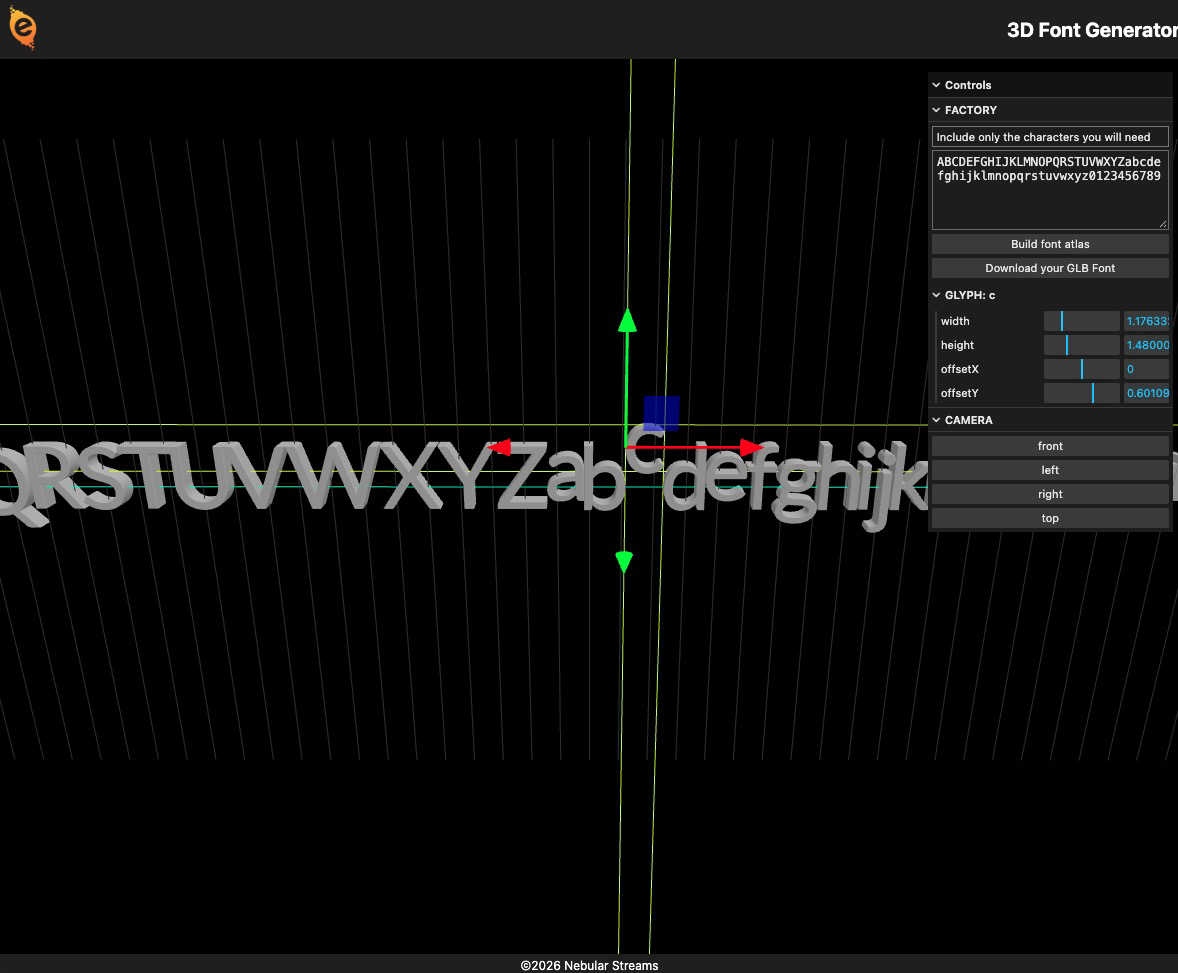
The Nebular 3D Font Generator converts a .ttf file into a binary .glb model. Each character becomes its own mesh, so the exported font can be loaded, positioned, animated, styled, or rendered with any engine or 3D tool that supports glTF/GLB.
Quick start
- Open the 3D Font Generator.
- Drag a
.ttffile anywhere onto the viewer. - Use the Draw controls to preview the font and tune its 3D appearance.
- Enter the characters you want to include under Factory.
- Select Build font atlas.
- Inspect the generated glyph meshes and adjust individual glyphs if needed.
- Select Download your GLB Font to export the finished font.
Include only the characters your project needs. A smaller character set produces a lighter GLB and keeps the atlas easier to work with.
Shape the font
After loading a TTF, the Draw panel lets you preview text while setting the geometry shared by the generated glyphs.
| Control | What it changes |
|---|---|
| Text | The text displayed in the live preview. |
| Size | The overall scale of the glyph geometry. |
| Depth | The extrusion depth of the 3D text. |
| Bevel | The amount of edge rounding. Set it to 0 for sharp edges. |
| Curve segments | The smoothness of curved outlines. Higher values look smoother but create more geometry. |
You can orbit and zoom around the preview to inspect the result from different angles.
Build an atlas
The Factory character field controls exactly which glyphs are generated. Its default set contains uppercase and lowercase English letters plus the digits 0–9, but you can replace it with any characters supported by the loaded font.
Select Build font atlas to generate one mesh for each character. The atlas lays the meshes out side by side for inspection and editing.
Adjust individual glyphs
Select a glyph in the viewport to reveal its controls:
| Control | What it changes |
|---|---|
| Width | The glyph's horizontal advance in the atlas. |
| Height | The height used when calculating its vertical adjustment. |
| Offset X | Horizontal spacing relative to the glyph width. |
| Offset Y | Vertical placement relative to the glyph height. |
Drag the transform gizmo to adjust a selected glyph visually. Use the front, left, right, and top camera presets to check alignment from a fixed direction.
Exported GLB
The download is a binary glTF (.glb) file containing a group of glyph meshes. Each mesh name carries the character and its layout values, allowing an importer or runtime to recover the glyph metrics alongside the geometry.
Because GLB is an open, widely supported 3D format, the result is not tied to Nebular software. You can use the meshes in game engines, DCC applications, WebGL projects, custom renderers, or any other workflow that can import GLB files.
Unity support
Use the accompanying Unity package for loading and rendering these generated fonts in your own projects. This is not required to use the exported files: you can import the GLB through your preferred Unity glTF importer and build your own layout or rendering component around the individual glyph meshes.
Tips
- Confirm that your font actually contains every character in the atlas before exporting.
- Keep curve segments as low as your visual target allows to reduce polygon count.
- Use a modest depth and bevel for lightweight real-time assets.
- Test punctuation, accented letters, symbols, and non-Latin scripts explicitly; font coverage varies.
- Review the font's license before redistributing generated meshes.
- Rebuild the atlas after changing its character list.
Browser requirements
The generator needs a modern browser with WebGL support. TTF parsing, mesh generation, adjustment, and GLB export run in the browser; no installation is required.