Using the Nebular 3D Text Package
The Nebular 3D Text package turns a string into real 3D geometry in Unity. Use the Text 3D component for text that can change at runtime, or bake the result to a standard mesh, prefab, or scene object when the text is final.
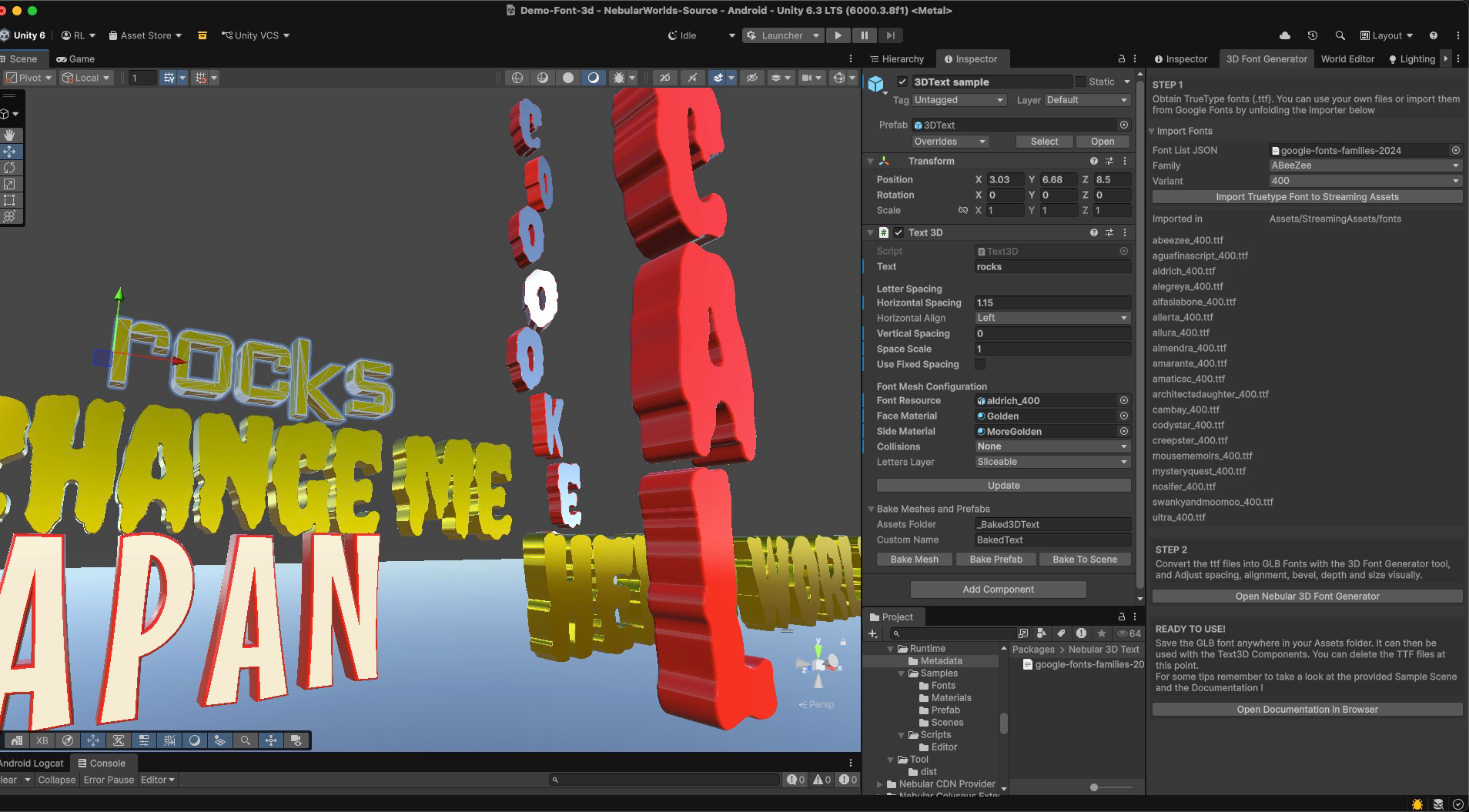
Start with the demo scene
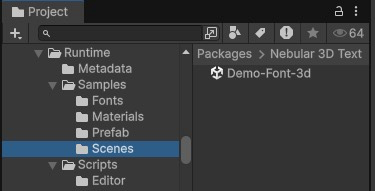
After importing the package, open the sample scene from Samples/Scenes. It contains several Text 3D components and baked examples demonstrating different fonts, materials, spacing, alignment, and text flows.
The sample content is organized into:
- Fonts — example GLB font resources
- Materials — example face and side materials
- Prefab — a ready-to-use 3D Text prefab
- Scenes — the package demo scene
Create 3D text
- Add the supplied 3DText prefab to your scene, or add the Text 3D component to a GameObject.
- Assign a generated GLB font to Font Resource.
- Enter the content in Text.
- Choose the face and side materials.
- Adjust spacing and alignment as needed.
- Select Update to rebuild the geometry after making changes.
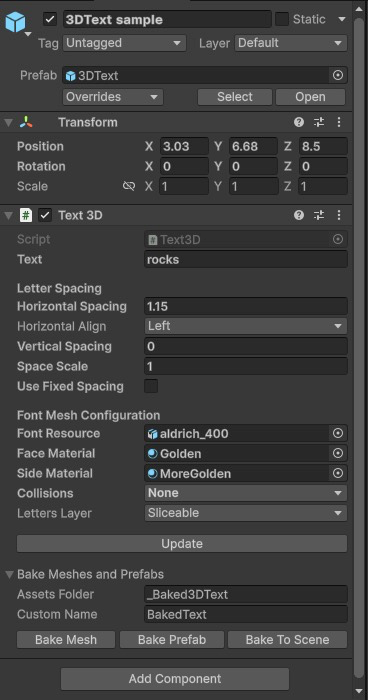
Text 3D Inspector
Text and layout
| Property | Description |
|---|---|
| Text | The string rendered by the component. Change it in the Inspector or at runtime to generate new text. |
| Horizontal Spacing | Adds or removes space between consecutive glyphs. |
| Horizontal Align | Aligns the generated line relative to the GameObject. |
| Vertical Spacing | Controls the distance between glyphs when using a vertical layout. |
| Space Scale | Changes the width reserved for space characters. |
| Use Fixed Spacing | Uses a consistent advance for every character instead of each glyph's stored width. This is useful for grid-like or monospaced layouts. |
The component supports horizontal, diagonal, and vertical arrangements. Use the layout and spacing controls together with the GameObject transform to produce the desired flow.
Font mesh configuration
| Property | Description |
|---|---|
| Font Resource | The GLB font atlas used to find and instantiate glyph meshes. |
| Face Material | Material applied to the front and back faces of each glyph. |
| Side Material | Material applied to the extruded sides. Use a contrasting material to emphasize depth. |
| Collisions | Controls whether collision geometry is created for the generated text. Leave it at None when collisions are unnecessary. |
| Letters Layer | The Unity layer assigned to generated letter objects. |
Select Update whenever you want to rebuild the displayed text from the current settings.
Import or create a font
Open the 3D Font Generator window in Unity to prepare a font resource.
Import from Google Fonts
- Expand Import Fonts.
- Choose a font Family and Variant.
- Select Import Truetype Font to Streaming Assets.
- Find the downloaded
.ttfunderAssets/StreamingAssets/fonts.
You can also use your own licensed .ttf file instead of importing one from Google Fonts.
Convert the TTF to a GLB font
- Select Open Nebular 3D Font Generator.
- Drag the
.ttffile into the online generator. - Choose the characters your project needs.
- Adjust glyph spacing, alignment, bevel, depth, and size visually.
- Build the atlas and download the resulting
.glbfile. - Save the GLB anywhere inside your Unity project's
Assetsfolder. - Assign the imported GLB to Font Resource on a Text 3D component.
Once the GLB has been imported, the temporary TTF in StreamingAssets is no longer required by the Text 3D component and can be removed if you do not need it elsewhere.
For detailed generator instructions, see the Nebular 3D Font Generator.
Add only the glyphs your project uses. Smaller atlases import faster and produce fewer unused assets.
Runtime text
Keep the Text 3D component in the scene when its content must change while the application is running—for example, player names, labels, counters, or user-generated text. Set the component's text value from your own script, then rebuild it using the component's update method.
Runtime layout uses the width and offset values stored with each generated glyph. It intentionally does not perform advanced typography such as kerning or ligatures. If an irregular or decorative font does not space cleanly, return to the font generator, tune the glyph values, and export the atlas again.
Bake the result
When the text is final, expand Bake Meshes and Prefabs. Set Assets Folder to the destination folder and Custom Name to the name of the generated asset or object.
Choose the bake target that fits your workflow:
| Action | Result | Best for |
|---|---|---|
| Bake Mesh | Creates a reusable Unity mesh asset in the selected assets folder. | Sharing one finalized mesh between several objects. |
| Bake Prefab | Creates a reusable prefab containing the rendered mesh and configured components. | Reusable signs, titles, and scene elements. |
| Bake To Scene | Places the finalized static geometry directly in the current scene. | One-off text that no longer needs procedural updates. |
Baked outputs are standard Unity assets and do not depend on the runtime Text 3D component. Keep text procedural while iterating, then bake static text to simplify the scene and avoid rebuilding geometry at runtime.
Choosing a workflow
Use the runtime component when:
- the displayed string can change;
- content comes from players, localization, or live data;
- you need to update text programmatically.
Bake the text when:
- the string and visual treatment are final;
- exact placement matters more than runtime flexibility;
- the object will be reused as a prefab or mesh;
- you want a standalone result without a runtime package dependency.
Troubleshooting
Characters are missing
Make sure the character was included when you built the GLB atlas and that it exists in the original TTF. Add it to the atlas character list and export the font again.
Spacing looks uneven
Adjust the glyph width and offsets in the online font generator. Use Fixed Spacing can also help when every character should occupy the same amount of space.
Text does not reflect Inspector changes
Select Update to rebuild the generated geometry from the current component settings.
The asset contains more geometry than expected
Re-export the font with only the required characters. Reducing bevel and curve detail in the generator also produces lighter glyph meshes.
Font files have their own licenses. Confirm that the license permits your intended use and distribution before shipping generated font assets.